Arming & Disarming Your CCTV
What it does, and how to do it
Arming your CCTV is how you switch its alerts on and off. It's separate from your alarm system — this is purely about your cameras. Here's what changes when you arm it, and how to do it in a couple of taps.
When armed
- Push notifications come through to your phone when your cameras detect something.
- On cameras with active deterrence, the strobe light and siren will trigger — if your cameras have that feature and it's been set up.
When disarmed
- Notifications stop — handy when you're home and don't want your phone buzzing.
- The strobe and siren won't trigger. Your cameras keep recording either way.
How to tell at a glance
Look at the badge in the corner of each camera. A blue siren icon means that camera is armed. When it's greyed out with a line through it, that camera is disarmed.
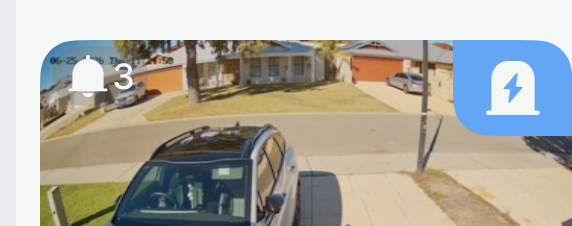
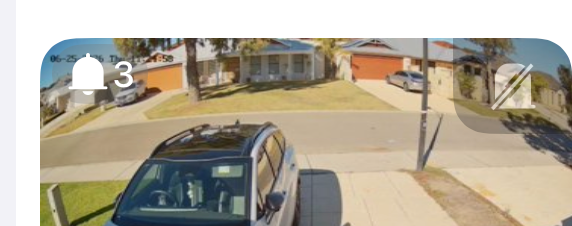
- 1
Open your CCTV group
Open Hik-Connect and go to your camera group (ours is called Home CCTV). The little badge on each camera tells you the current state — blue means armed.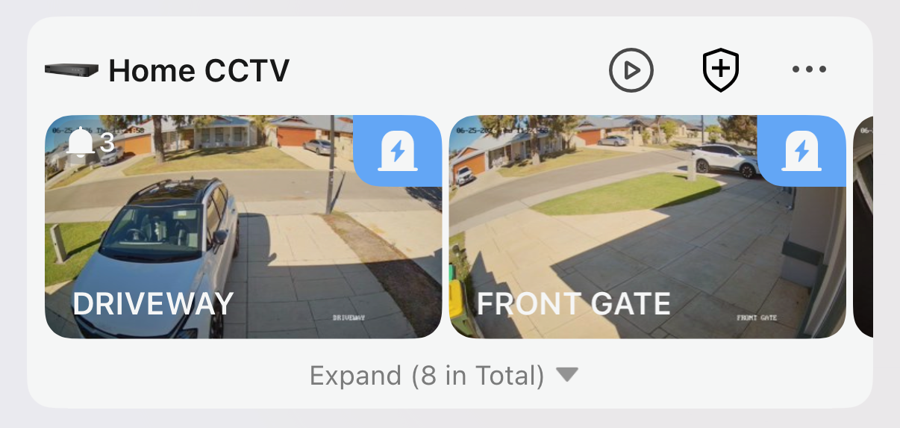
- 2
Bring up the arming options
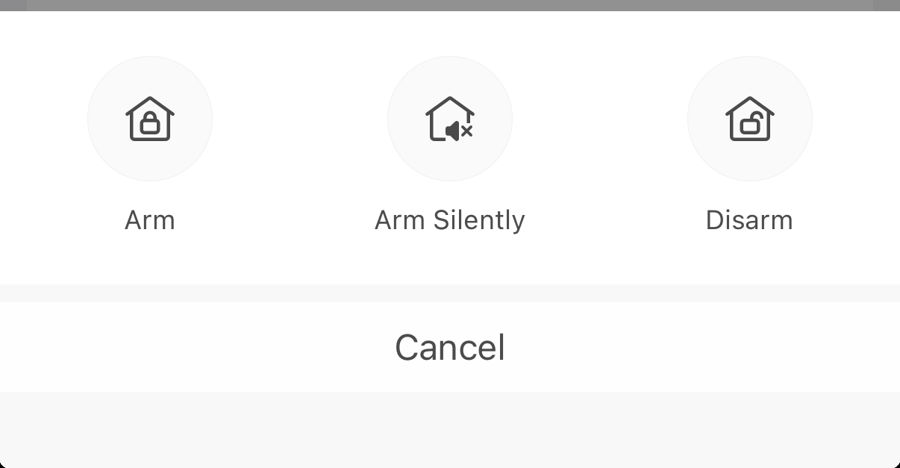
At the top-right of the screen, tap the shield icon with a plus symbol on it — that brings up the arming menu, with three choices:
- Arm — the full deal: push notifications to your phone, plus the strobe and siren on any active-deterrence cameras.
- Arm Silently— still armed, but your phone stays quiet. The lights and siren still trigger if your cameras are set up for it — you just won't get the push notifications. Handy overnight.
- Disarm — switches it all back off.
- 3
Tap Arm
Tap Arm. You'll see "Home CCTV armed"confirm it's done, and the badges turn blue. Your system is now watching and will alert you.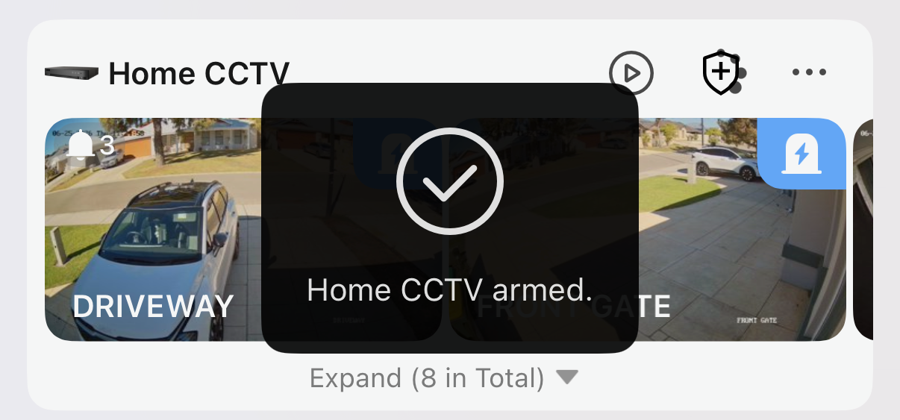
- 4
To disarm, do the same and tap Disarm
When you want to turn it off, open the same menu and tap Disarm. You'll see "Disarming Home CCTV succeeded", and the badge greys out with a line through it. Notifications stop until you arm it again.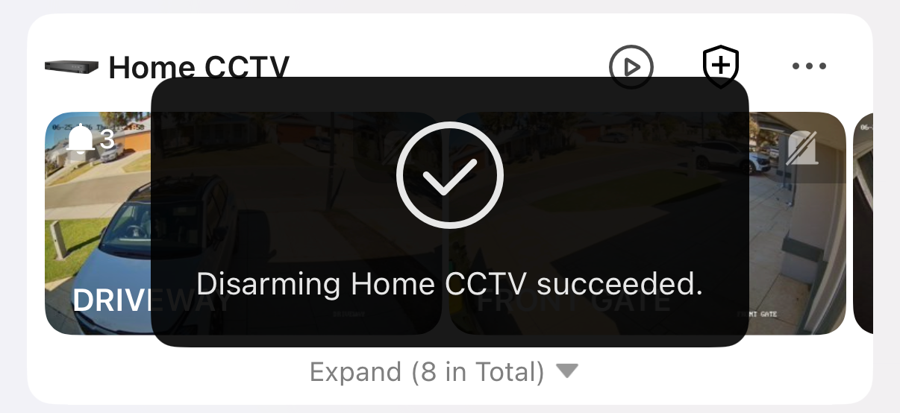
A good habit
Arm it when you head out or turn in for the night, disarm it when you're up and about. Your footage records either way — arming just controls the alerts and deterrence.
Want a hand setting this up?
Give us a call or send an email and we'll walk you through it.