Getting Ready for Install Day
Set Up Your Hik-Connect App
Before we arrive, please take 5 minutes to download the Hik-Connect app and create your account. This means on install day we can connect your new system to your phone in seconds — no waiting around. You'll just need your iPhone and access to your email or mobile number.
The one thing to get right
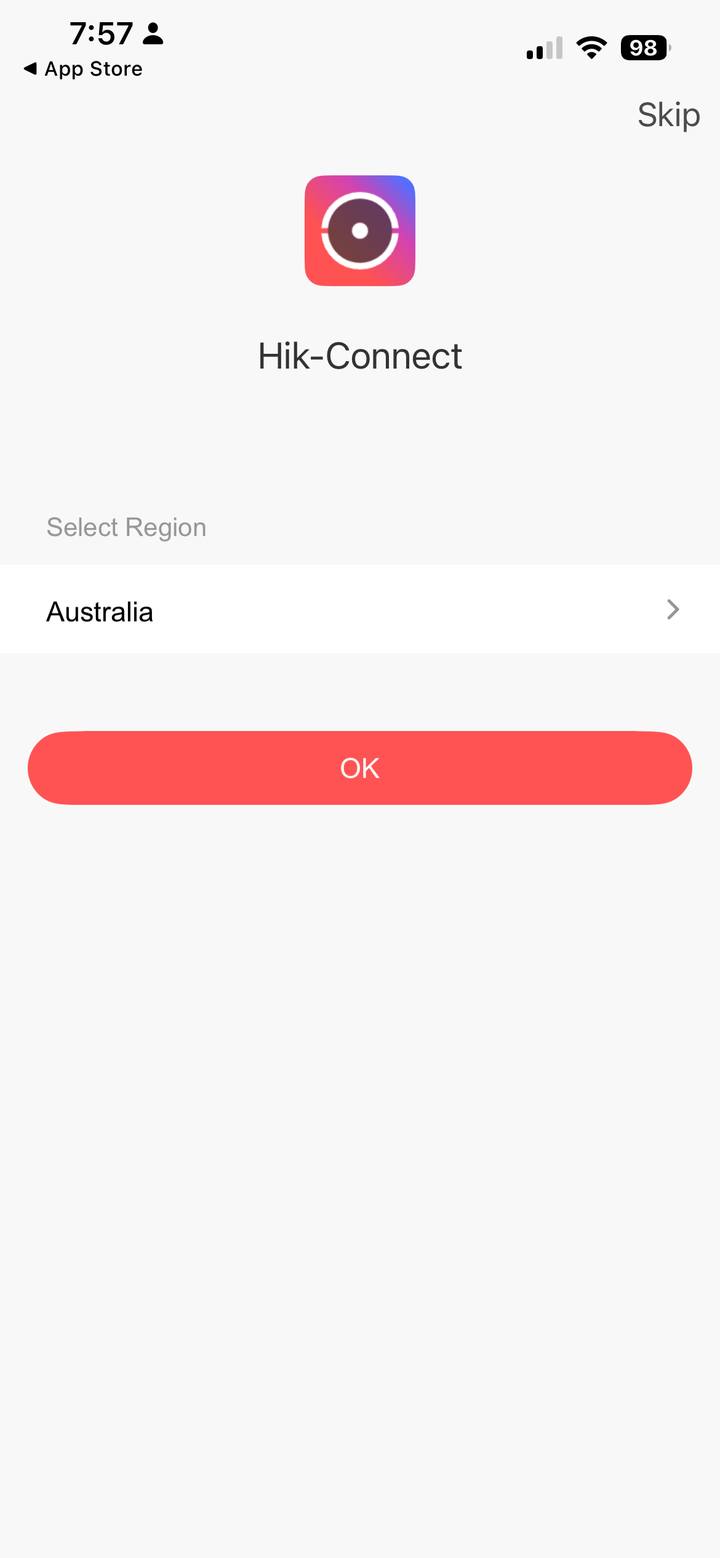
At Step 4, choose Australia as your region.
This can't be changed later, and the wrong choice stops your cameras working. If you're unsure, double-check it before moving on.
- 1
Download the app
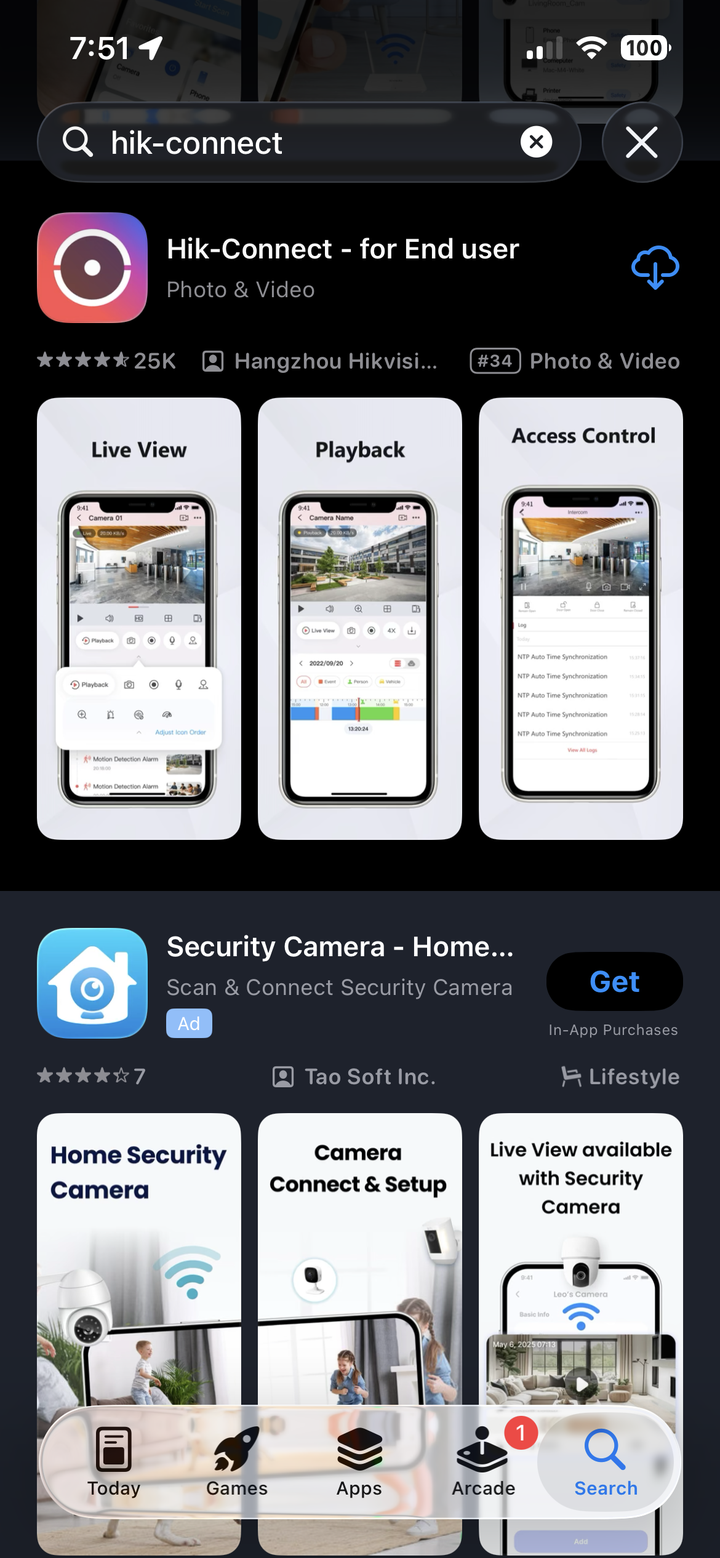
Open the App Store, search Hik-Connect, then tap Get to install.
- 2
Allow notifications
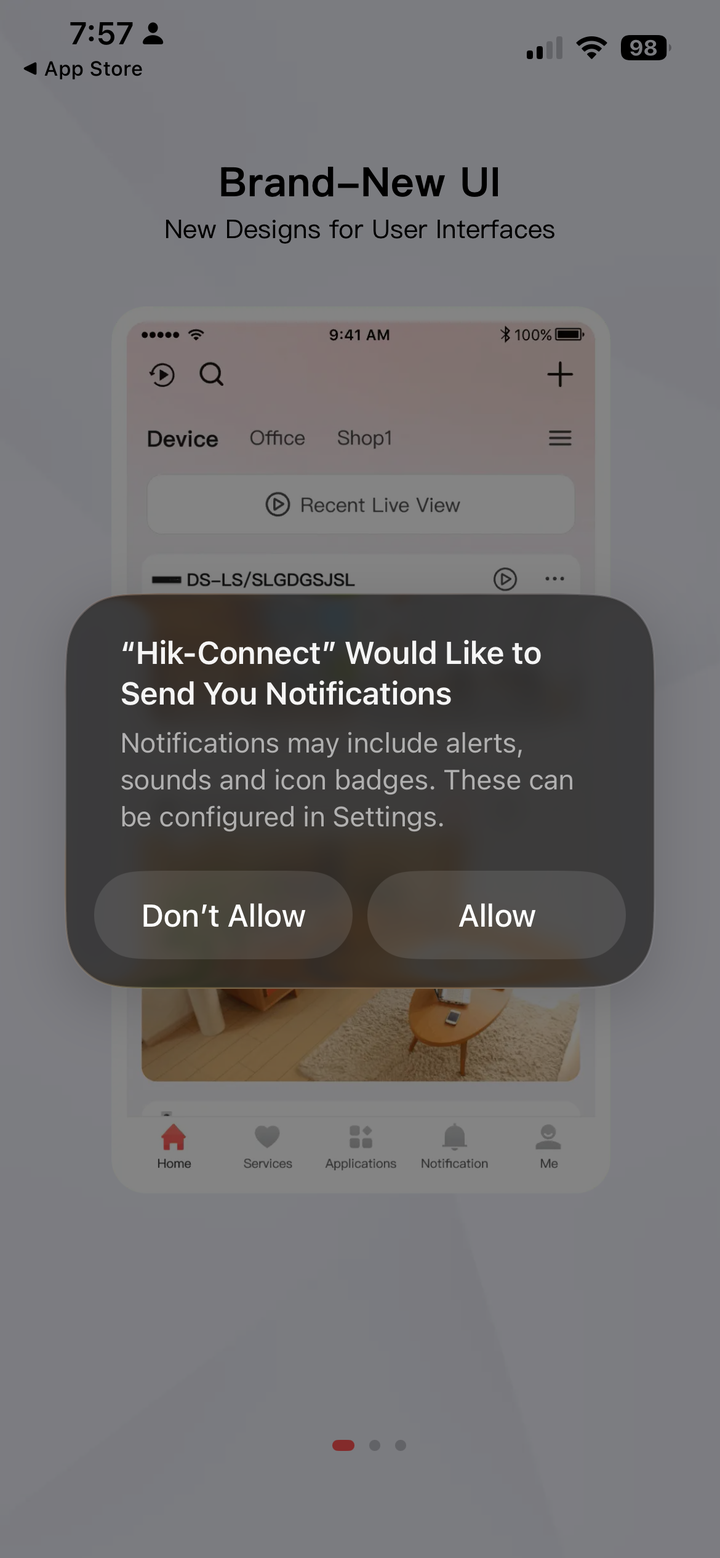
When you open the app, if you're asked about notifications, choose Allow — that's how you'll get camera alerts. You may be asked more than once; allow each one.
- 3
Swipe through the welcome screens
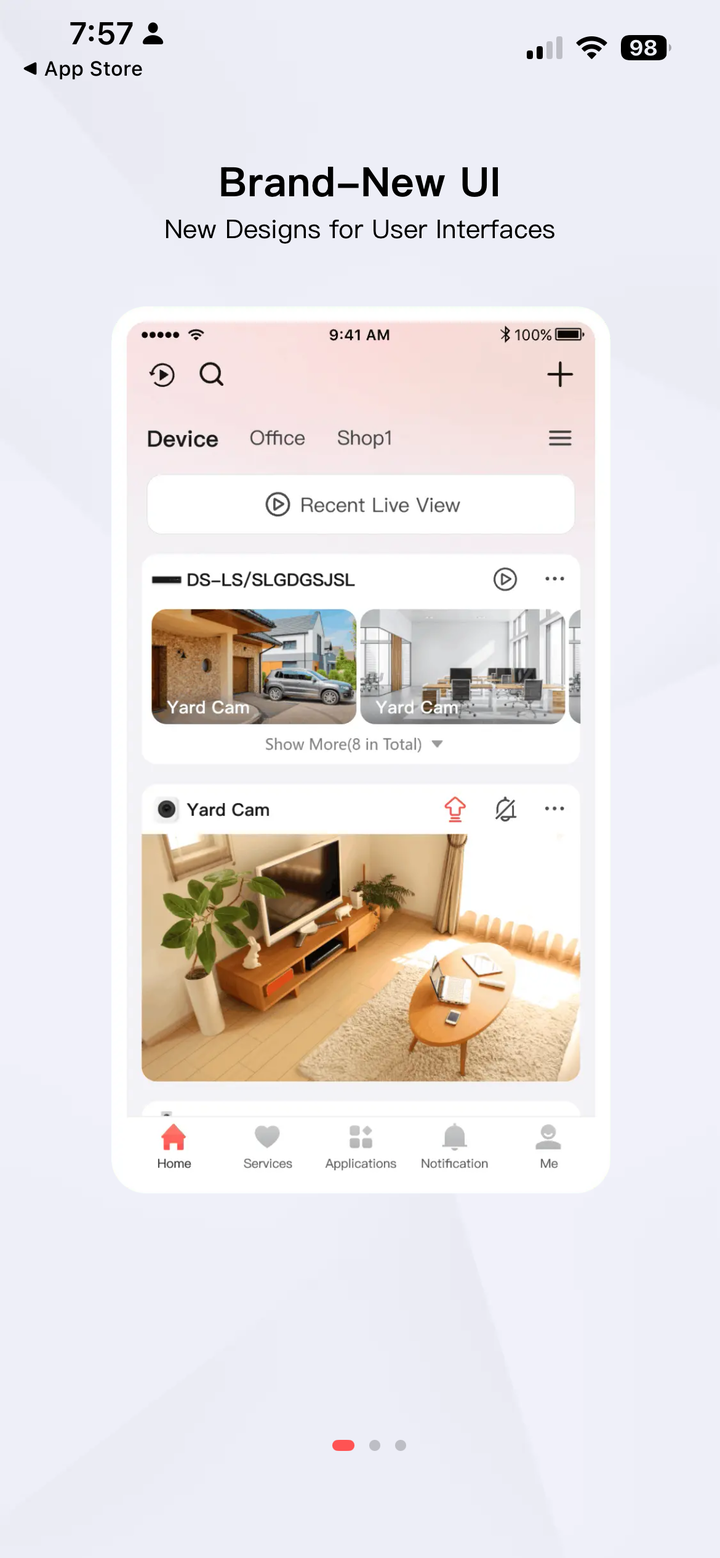
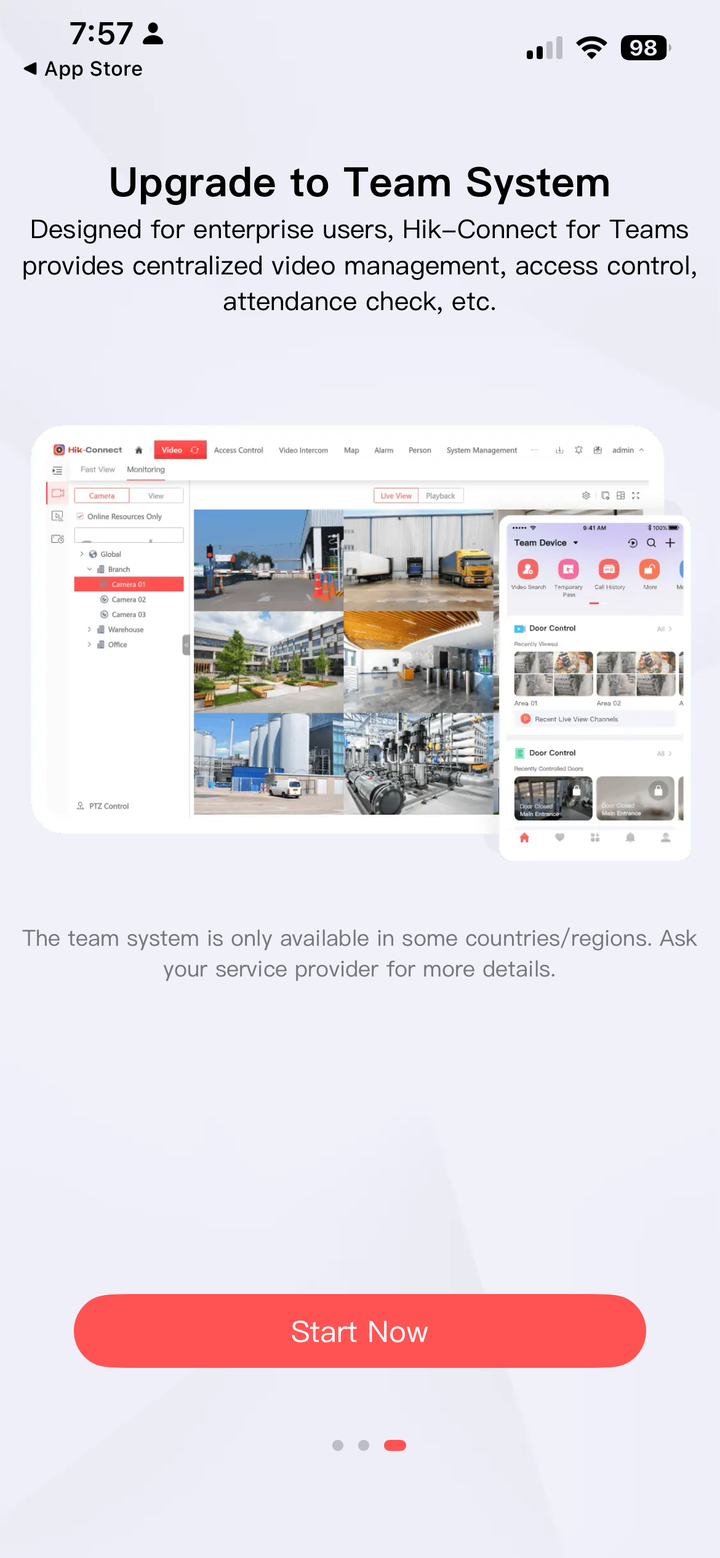
Swipe across three times through the intro screens until you reach the setup screen.
- 4
Choose your region
Choose Australia, then tap the tick at the top to continue. (See the important note above — this is the one that matters most.)
- 5
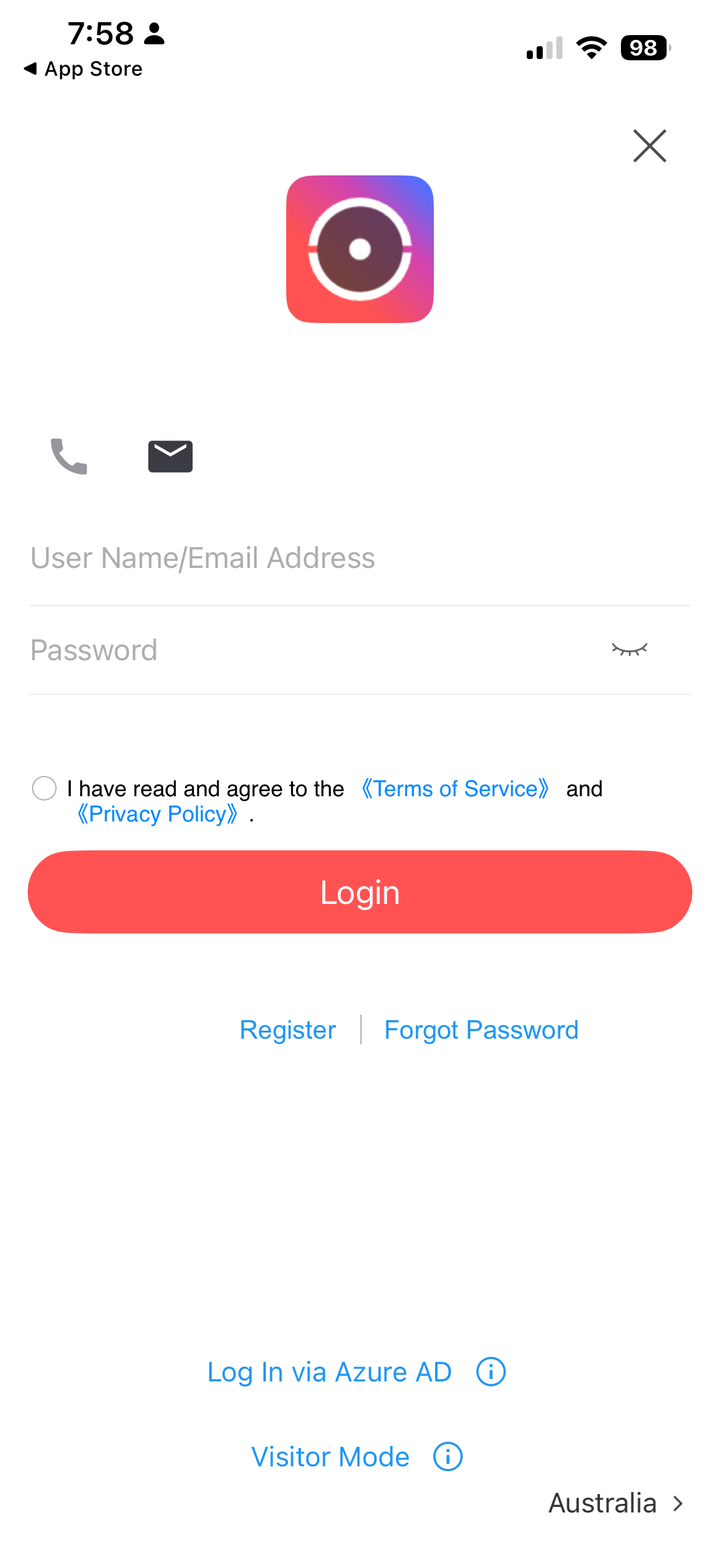
Tap Register
On the login screen, tap Register.
- 6
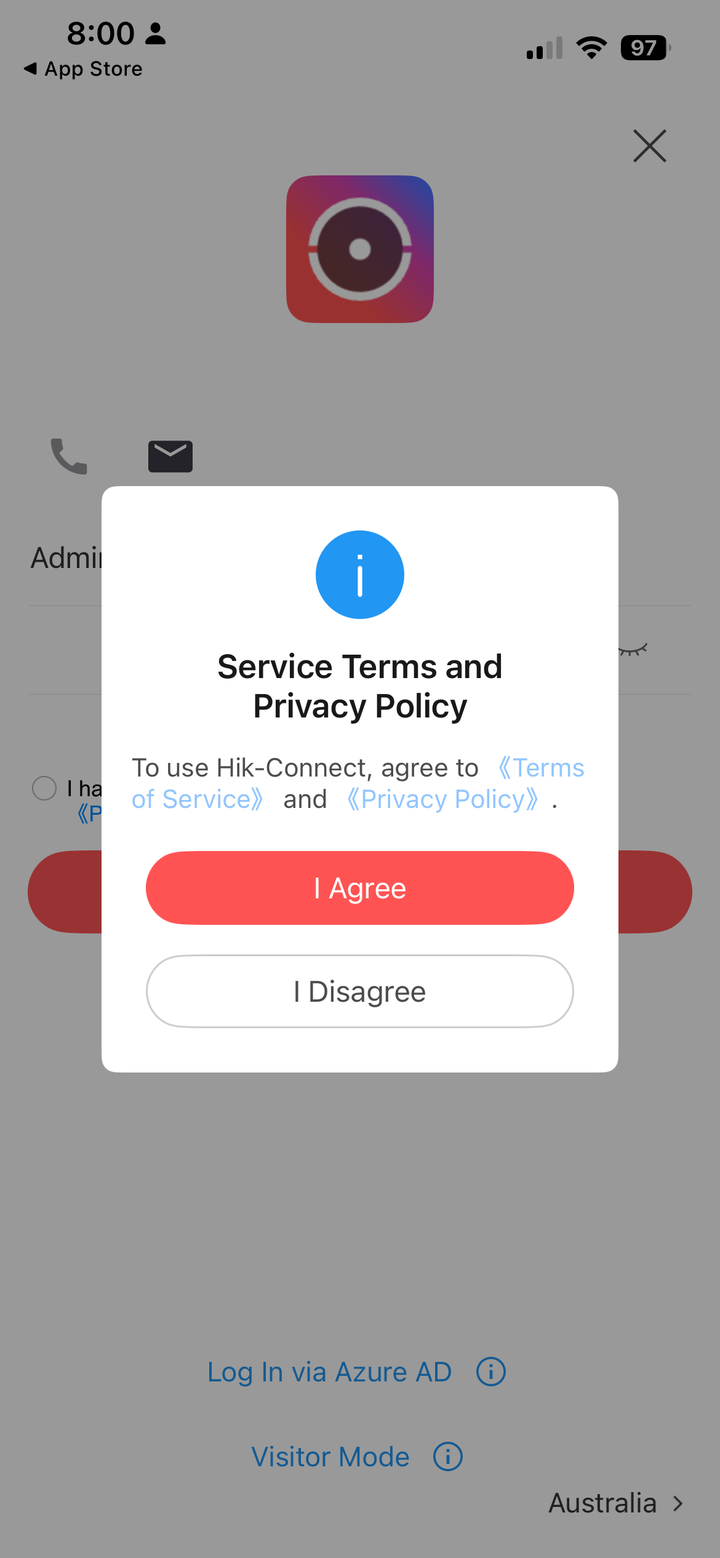
Agree to the terms
On the next screen, tap Agree to continue.
- 7
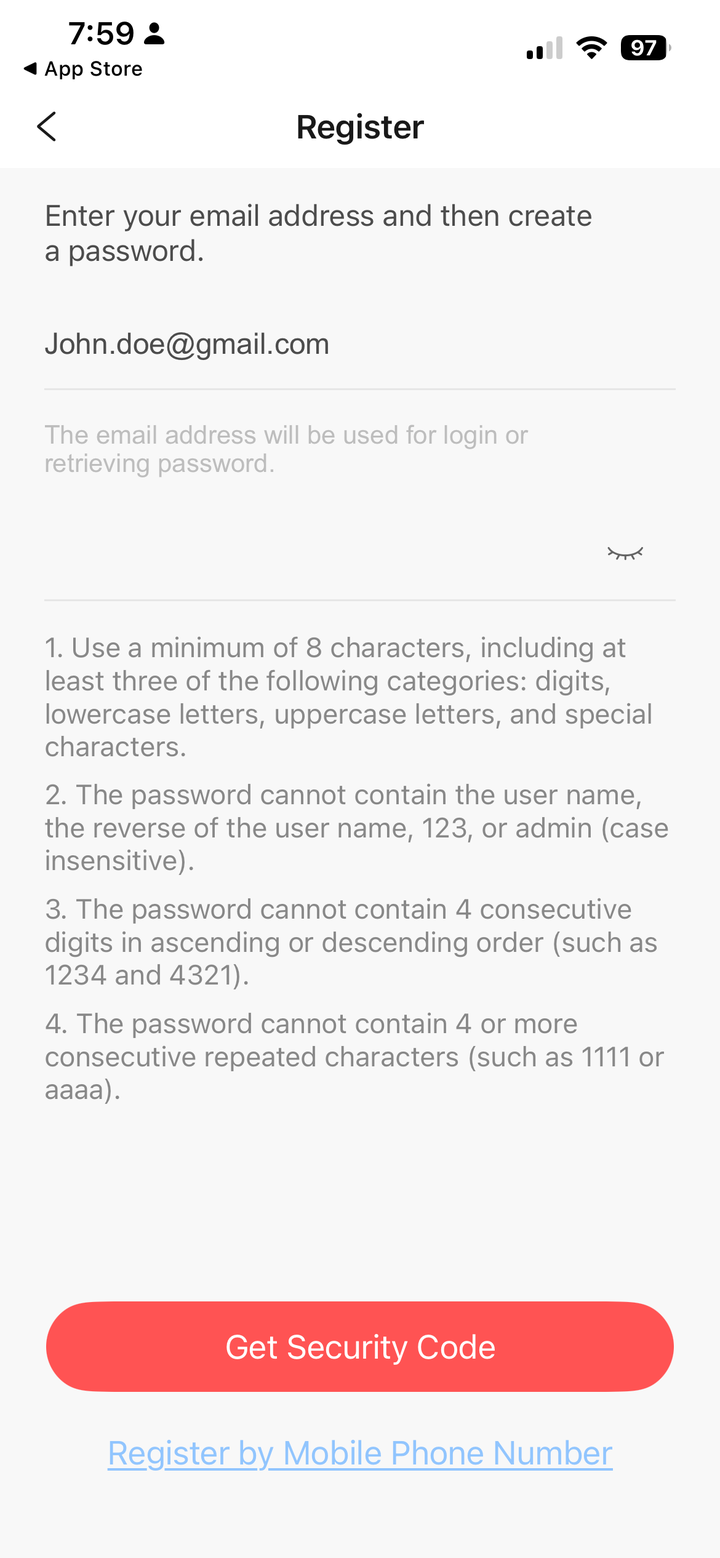
Enter your email and create your password
Enter your email or mobile — either is fine. Then create your password: at least 8 characters, with upper and lower case, a number, and a symbol. Write it down somewhere safe — it's your account. Then tap to get your security code.
- 8
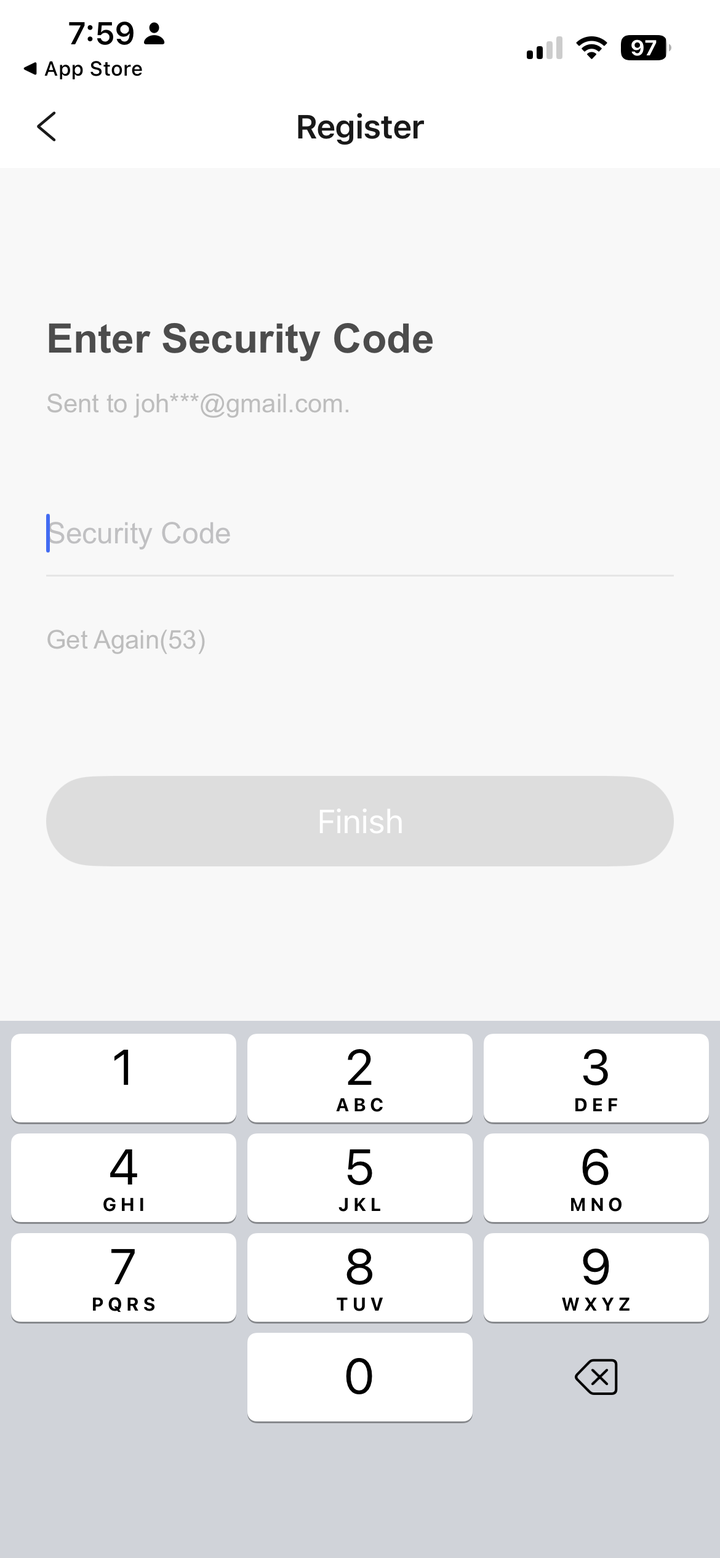
Enter the code
Check your email or text messages for the code, type it in, then finish.
- 9
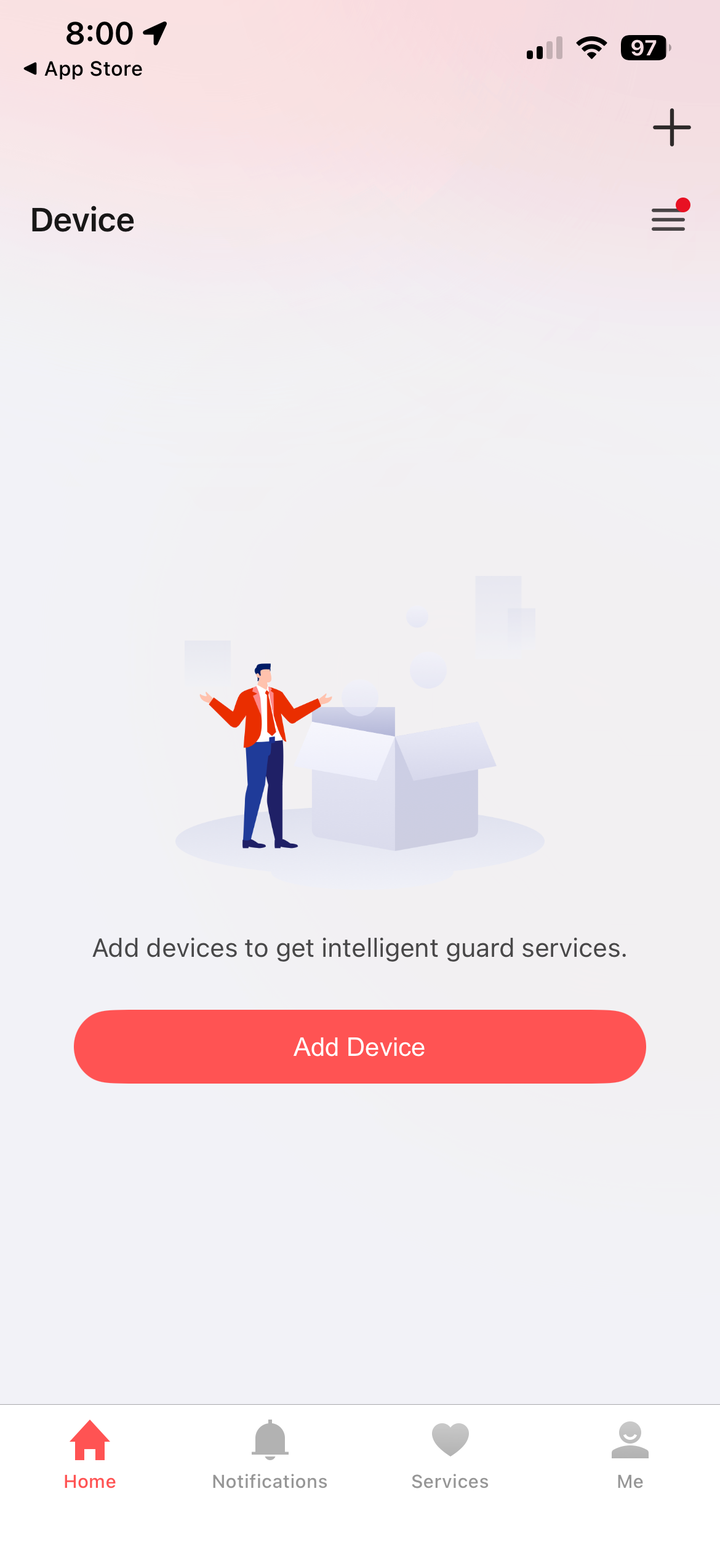
You're ready for install day
This is the screen you'll land on once your account is set up. That's everything we need from you — please don't tap Add Device. Just keep the app installed and stay logged in, and have your phone handy when we arrive. On install day we'll pair your whole system in seconds by scanning a QR code together.
That's the app sorted — nice work.
Have your phone handy and stay logged in when we arrive, and we'll take it from there.
A Couple of Things to Think About
Nothing to do now — but if you have a spare minute, having a think about these two things means we can set your system up exactly how you want it on the day. We'll go through it all with you, so don't worry if you're not sure.
1. What to call each camera
Each camera gets a name in the app, so a quick check of your phone makes sense at a glance. Have a think about what you'd call each spot — for example:
Front Yard · Driveway · Front Door · Back Yard · Garage · Side Gate
2. The kind of alerts you want
Your cameras can do more than record — they can send your phone an alert when something specific happens. Two common options:
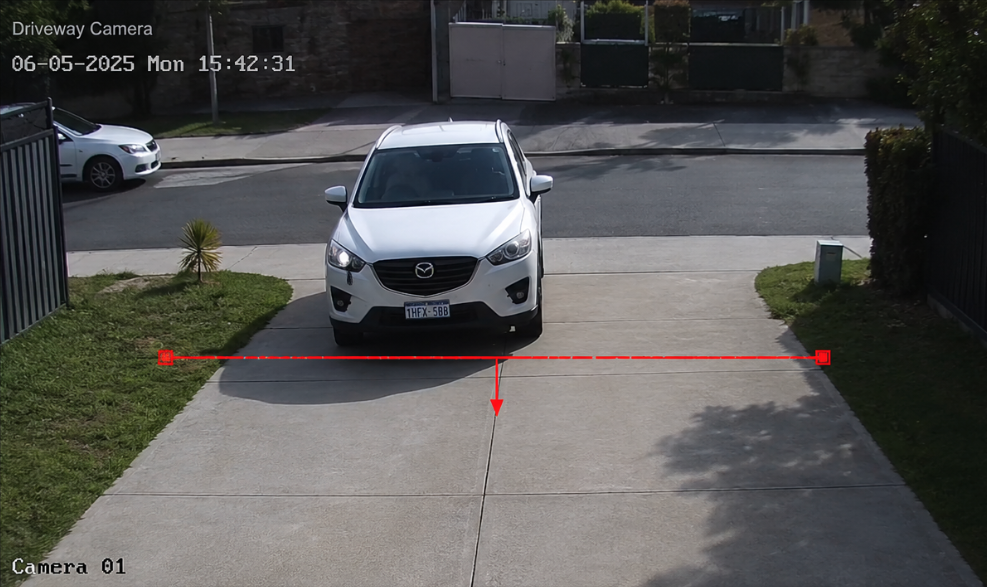
- Line Crossing — you set a line, and you get an alert when someone crosses it. Good for a driveway, a fence line, or a path.
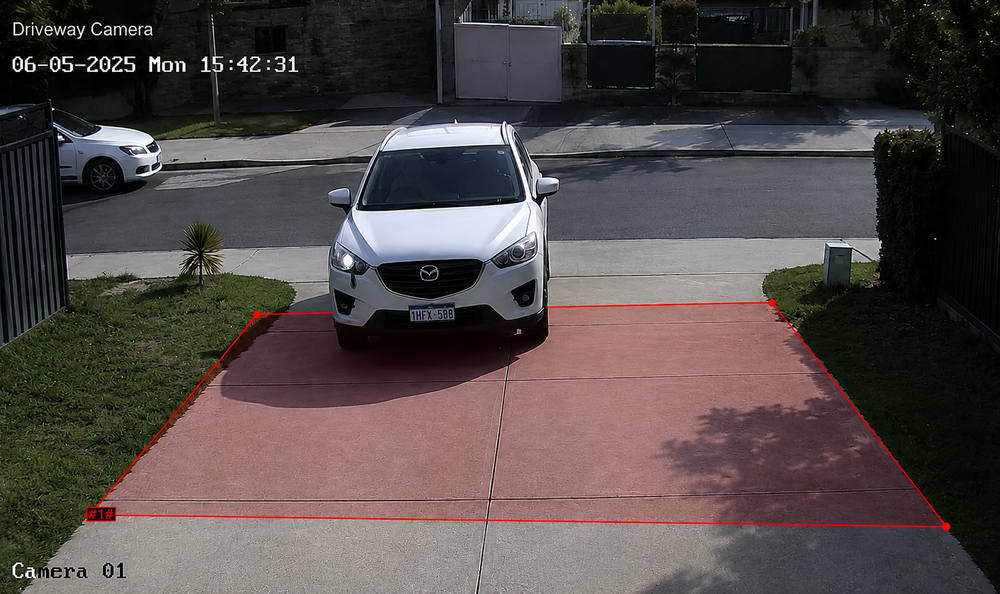
- Intrusion Zone — you draw an area, and you get an alert when someone enters and stays in it. Good for a yard, a doorway, or around a shed.
Have a think about which suits each camera — we'll set it up together. Here's what each one looks like:
Stuck on any step?
Give us a call or reply to your email and we'll walk you through it.