Renaming a Device
Give it a name that makes sense to you
Renaming a device gives it a label you'll recognise at a glance — Home CCTV, House Alarm, Front Doorbell — instead of the default it came with. This renames the whole device (your CCTV recorder, alarm or doorbell), not the individual cameras on it. It works the same for any device on your account.
- 1
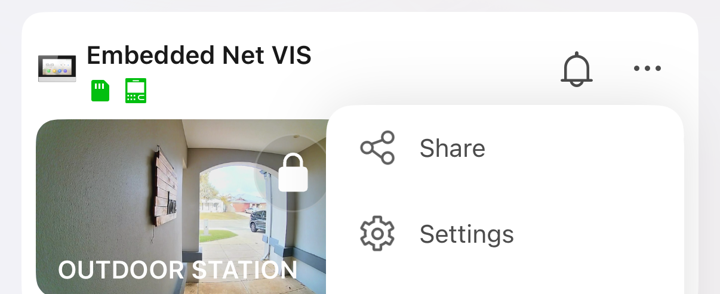
Open the menu and choose Settings
Tap the three dots in the top-right corner of the device, then tap Settings.
- 2
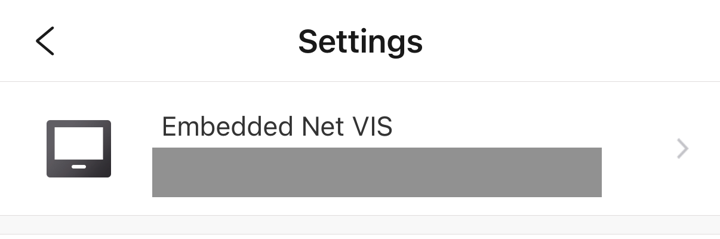
Tap the device name
At the top of Settings you'll see the current name. Tap it to edit.
- 3
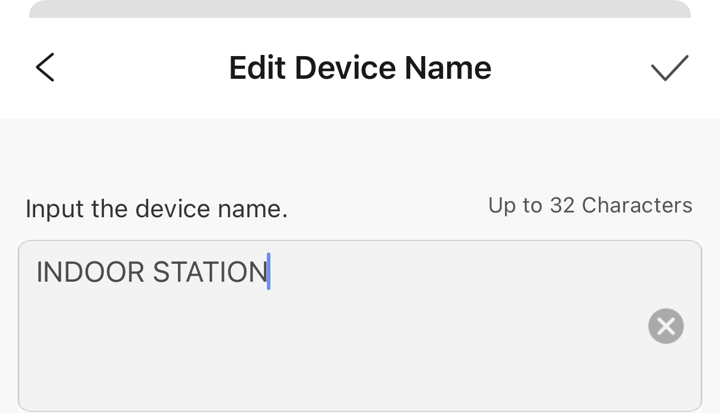
Type the new name and save
Clear the old name and type the one you want (up to 32 characters), then tap the tick in the top-right corner.
- 4
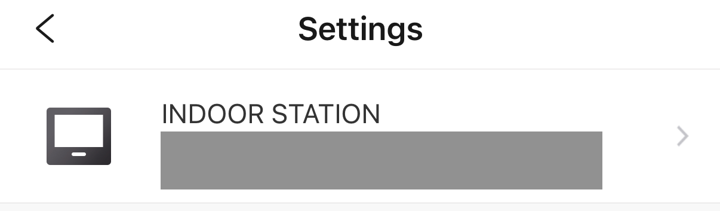
Check it updated
The Settings screen now shows the new name. That's it saved.
- 5
Back to the main screen
Tap the back arrow in the top-left to return to your device list, where you'll see the new name in place.
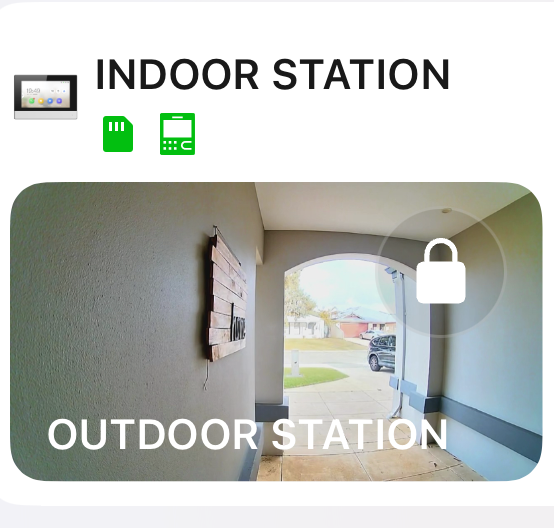
Renamed.
You can rename any device this way, as often as you like — it only changes the label in your app.