Armed, But No Notifications?
Here's the one toggle to check
Your system's armed, but the alerts have gone quiet. Nine times out of ten it's not a fault — the app has simply switched off notifications for your CCTV, usually after an update. It's a quick fix once you know where to look. Follow the menu through and you'll have it sorted in under a minute.
The catch
There are two layers of notification settings. The main ones can all look switched on while a separate, per-devicetoggle is off — so everything seems fine but nothing comes through. That per-device toggle is what we're heading for.
- 1
Tap Me
At the bottom-right of the app, tap Me.

- 2
Tap the settings cog
At the top-right of the screen, tap the cog to open Settings.

- 3
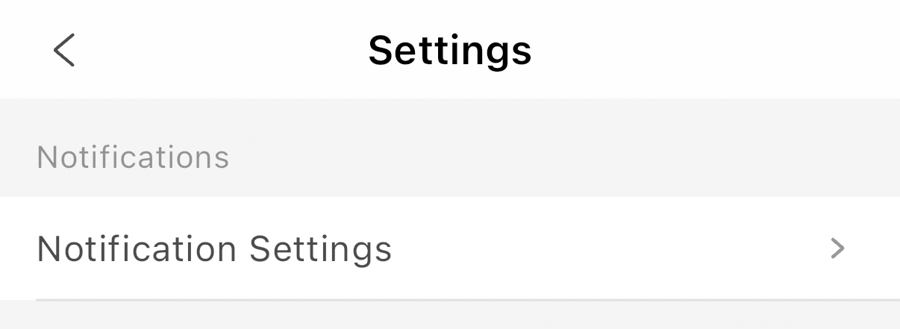
Tap Notification Settings
In Settings, tap Notification Settings.
- 4
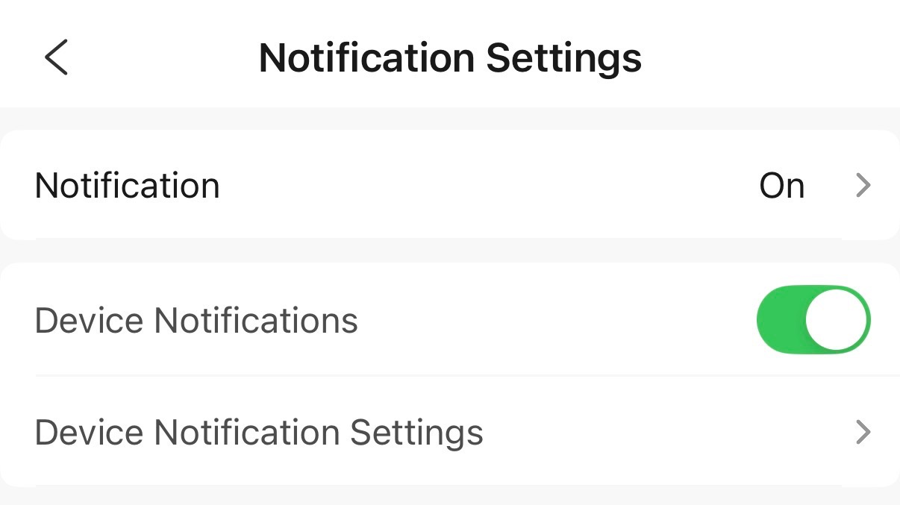
Tap Device Notification Settings
This screen has a few rows. The top two can be switched on and everything still looks fine — that's what makes this one sneaky. Tap the third one, Device Notification Settings.
- 5
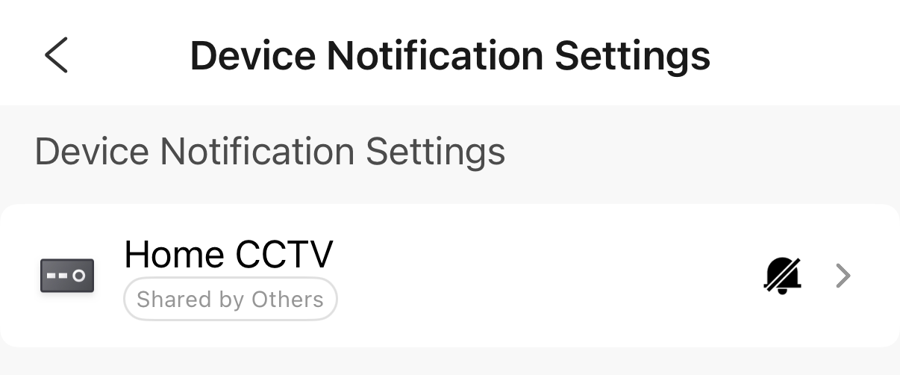
Tap your CCTV system
You'll see your system listed (ours is Home CCTV). See the bell with a line through it? That's the giveaway — notifications for this device are off. Tap it.
- 6
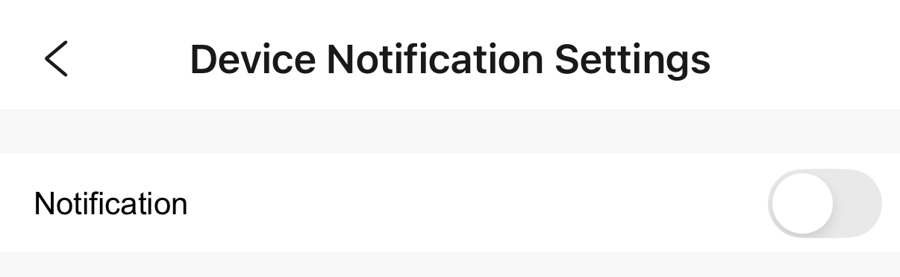
There's the culprit
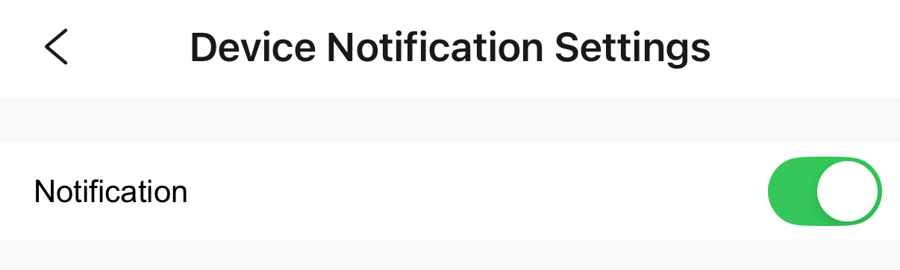
You'll see Notification switched off.
- 7
Toggle it on
Tap the switch so it turns green. That's it — notifications are back on for your cameras.
Sorted.
Next time your armed system spots motion, you'll get an alert on your phone like this one.

Still nothing coming through?
Two more things worth a quick check: make sure your system is actually armed, and that your phone is allowing Hik-Connect notifications (in your phone's own Settings → Notifications → Hik-Connect). If it's still not playing ball, give us a call and we'll sort it.
Want us to take a look?
Give us a call or send an email and we'll talk you through it.