What Do the Buttons Do?
Your Live View Buttons, Explained
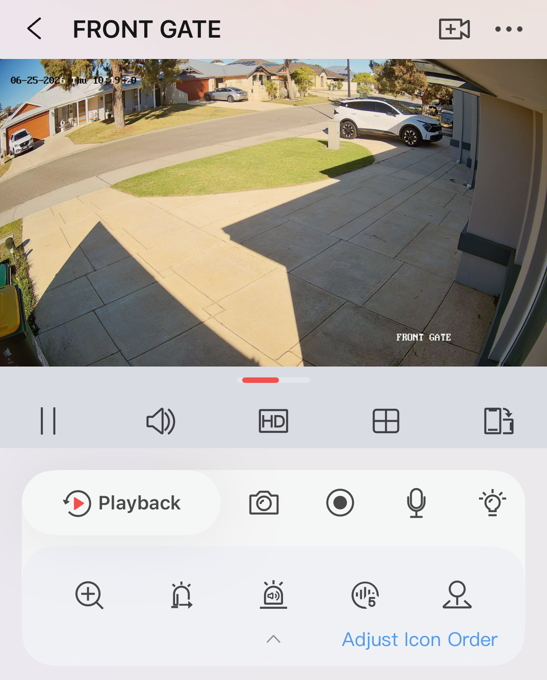
When you open a camera in the Hik-Connect app, you land on live view — and rows of buttons appear around the picture. Some are obvious, some less so. Here's what each one does, in plain English — so you can get the most out of your system.
Looking back at recorded footage instead? The playback screen has its own controls — see watching your recorded footage.
Have a play — you can't break anything.
Every button here is safe to press, so once you've had a read, feel free to tap around and get a feel for it. One thing to know: which buttons you see depends on your cameras — different models have different features, so you may not have every one below.
Across the top
The row of icons sitting just under your camera picture.

Pause / Play
Pauses the picture and starts it again. Works on live view and on recorded footage.

Sound on / off
Mutes and unmutes the audio. Only does anything if that camera has a built-in microphone and audio is switched on.

HD / Basic quality
Switches between HD (clearest picture) and a Basicsetting that's lighter on data. On mobile data, Basic uses less of your allowance.

Split screen
Changes how many cameras you see at once — one on its own, or the grid split into 4, 9 or 16. Good for a quick look at everything together.

Rotate / full screen
Turns the picture sideways to fill the whole screen. Tap the screen to bring the buttons back when you need them.
Main controls
The first row of buttons below the picture.

Playback
Takes you to your recorded footage so you can scroll back and find what you need. The playback screen looks much like live view, with a couple of different buttons.

Snapshot
Takes a still photo of whatever's on screen, live or on playback. It saves in the app under Me → Pictures and Videos, and from there you can save it to your phone or share it on.

Record clip
Records a short video of what you're watching (with sound, if the camera has it). Saves in the same place as snapshots — Me → Pictures and Videos — ready to save or send on.

Talk (two-way audio)
Lets you talk and listen through the camera — handy for a delivery driver, or to let someone know they're on camera. Only works on cameras with a microphone and speaker, and it works best when the person is reasonably close to the camera.

White light
Switches the camera's white spotlight on or off, on cameras that have one. Good for lighting up an area at night, or as a nudge that someone's being watched.
More controls
The second row. You can rearrange these yourself with Adjust Icon Order, so the order on your phone may differ.

Zoom
Zooms in on the picture, live or on playback. You can also just pinch the screen with two fingers, which is usually quicker.
Alarm output
Triggers an alarm output if one is wired into your system. If nothing's connected, the app will tell you there's no output to trigger.

Strobe & siren
On cameras that have it, this flashes the light and sounds a siren — a strong nudge to let someone know they've been spotted. There are different siren and spoken-warning options to choose from.

Noise reduction
Softens the background noise on the audio, so it's easier to hear what's on the recording. Tap to set the level — 0 turns it off, and 1 up to 5 dials it up. A middle setting is usually about right.

PTZ control
Opens the controls for steering a moving (PTZ) camera — pan, tilt, zoom, focus, and any saved preset positions. Most cameras are fixed and won't move, but the menu still opens if you tap it.
That's the lot.
Know these and you'll get far more out of your cameras than most people ever do. We're the ones who installed your system, so if something's not behaving, you call us — not a call centre.
Not sure about one of them?
Give us a call or send an email and we'll talk you through it.