Watching Your Recorded Footage
Scroll back, find the moment, save it
Your system records around the clock, so if something happens you can scroll back and find it. Here's how to open playback, read the timeline, and save a clip to your phone.
- 1
Open the camera
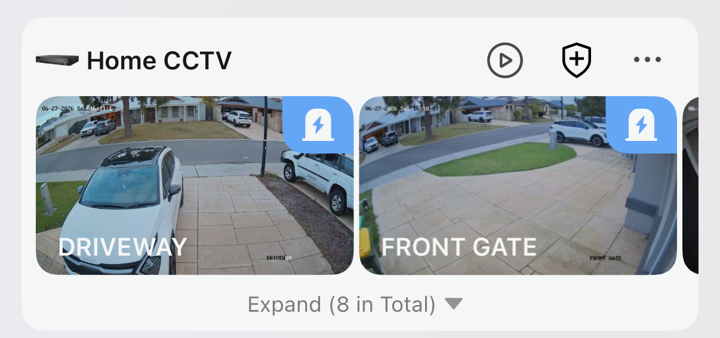
From your Home CCTV group, tap the camera you want to look back through.
- 2
Tap Playback
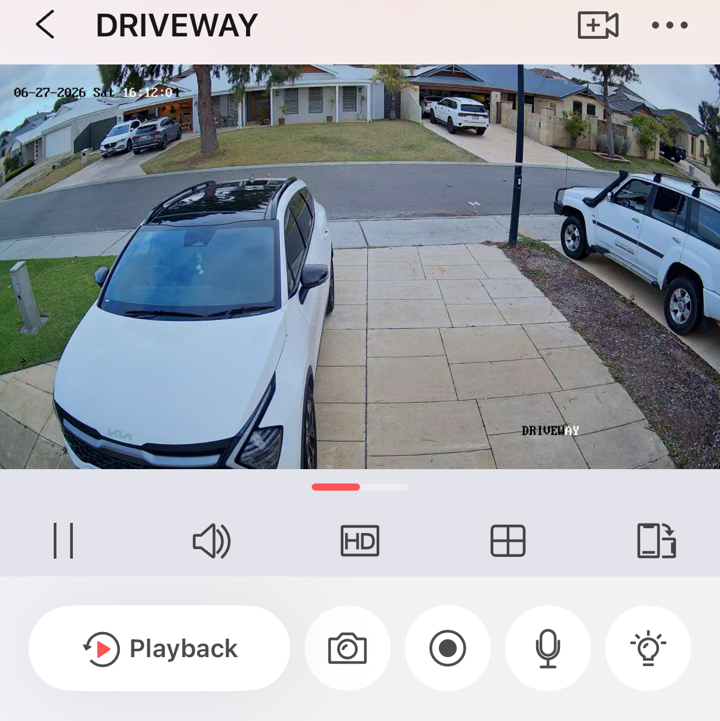
On the live view, tap Playback (the red play button). Not sure on the other buttons? See the buttons guide.
- 3
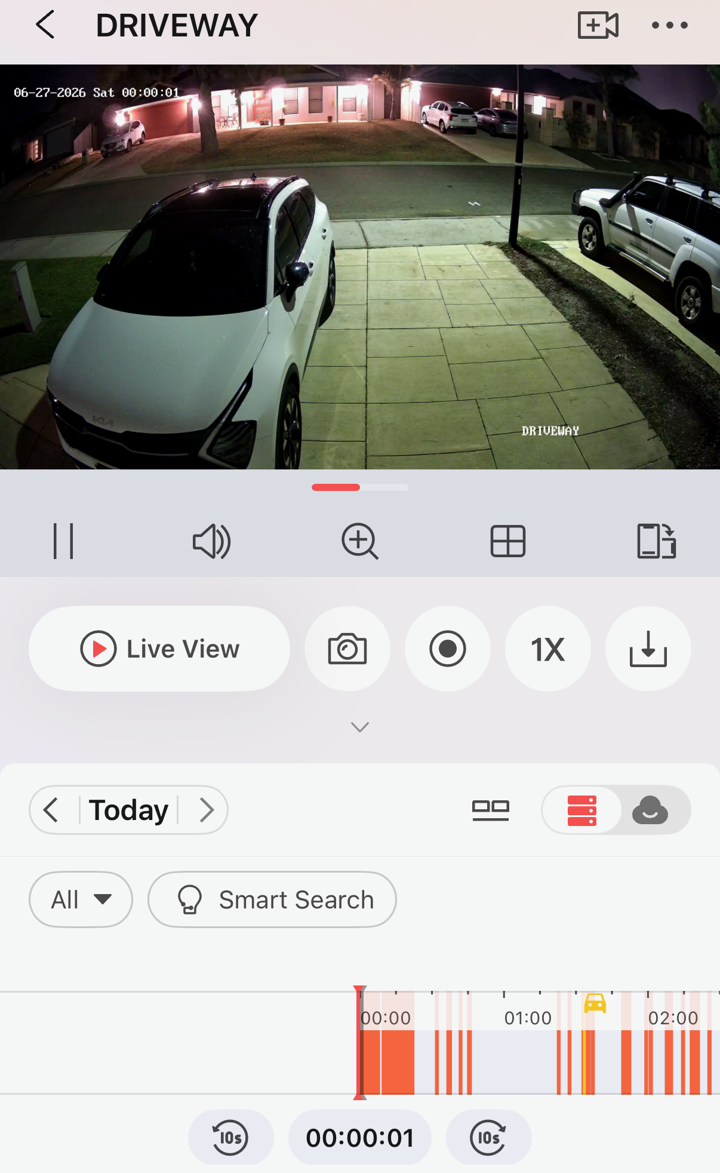
It opens at the start of today
Playback starts at midnight (00:00) of the current day. Drag the timeline at the bottom left or right to move through the day — or use Today at the top to jump to a different date.
- 4
Read the timeline
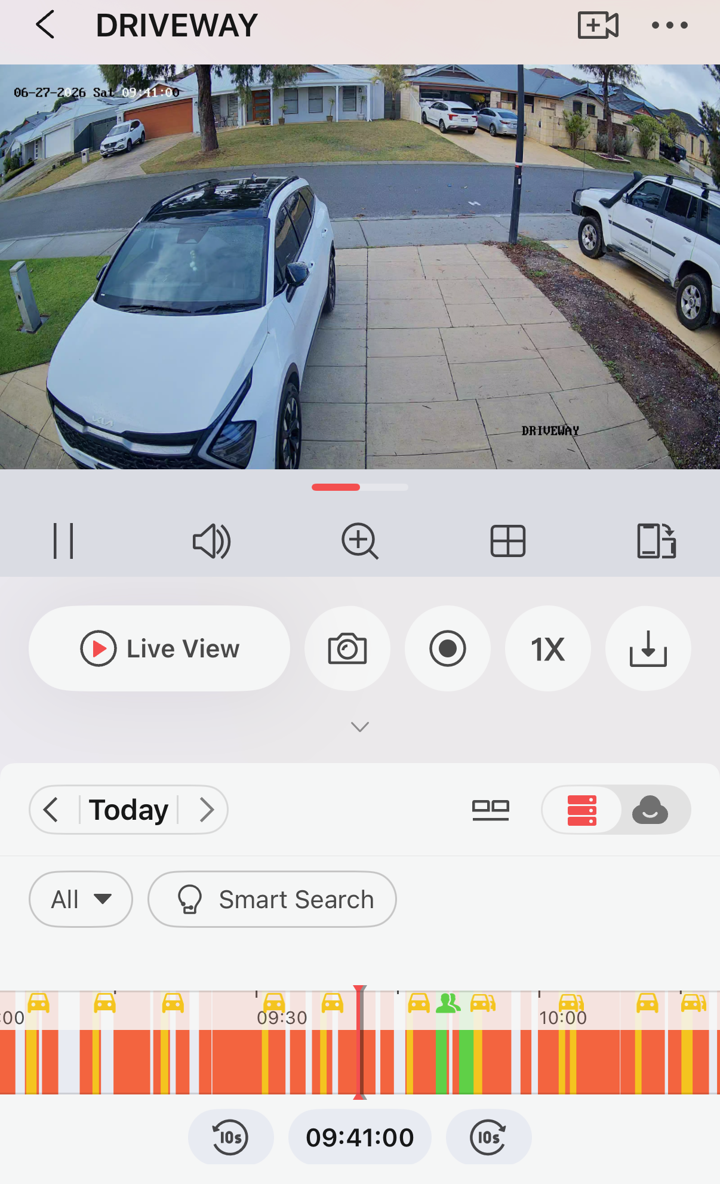
The coloured marks on the timeline show you where something happened, so you're not scrubbing through hours of nothing. Drag to one and it'll play from there.
What the colours mean
- Orange — motion was detected
- Yellow — a vehicle was detected
- Green — a person walked past
The playback controls
The row of buttons under the picture works much like live view. Tap the small arrow to expand the box and reveal the rest.
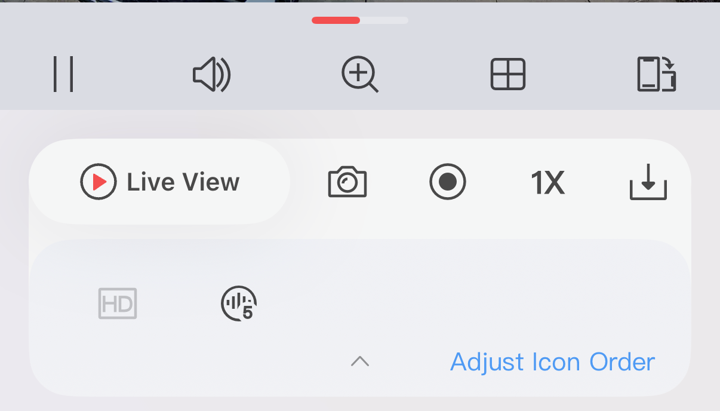

Live View
Jumps straight back to the live feed. From there it's a different set of buttons — see the live view buttons.

Snapshot
Grabs a still photo of the frame you're on.

Record
Records a clip of what you're watching as it plays.

Speed (1×)
Speeds the playback up — handy for skimming a quiet stretch quickly.

HD
Switches the picture quality. Tap the small arrow to reveal this one.

Noise reduction
Softens the background noise on the video's sound, so it's easier to hear.

Download
Saves a clip to your phone — the full steps are below.
Saving a clip to your phone
Found something you want to keep or send on? Here's how to get it off the system and onto your phone.
- 1
Tap Download, then trim the clip
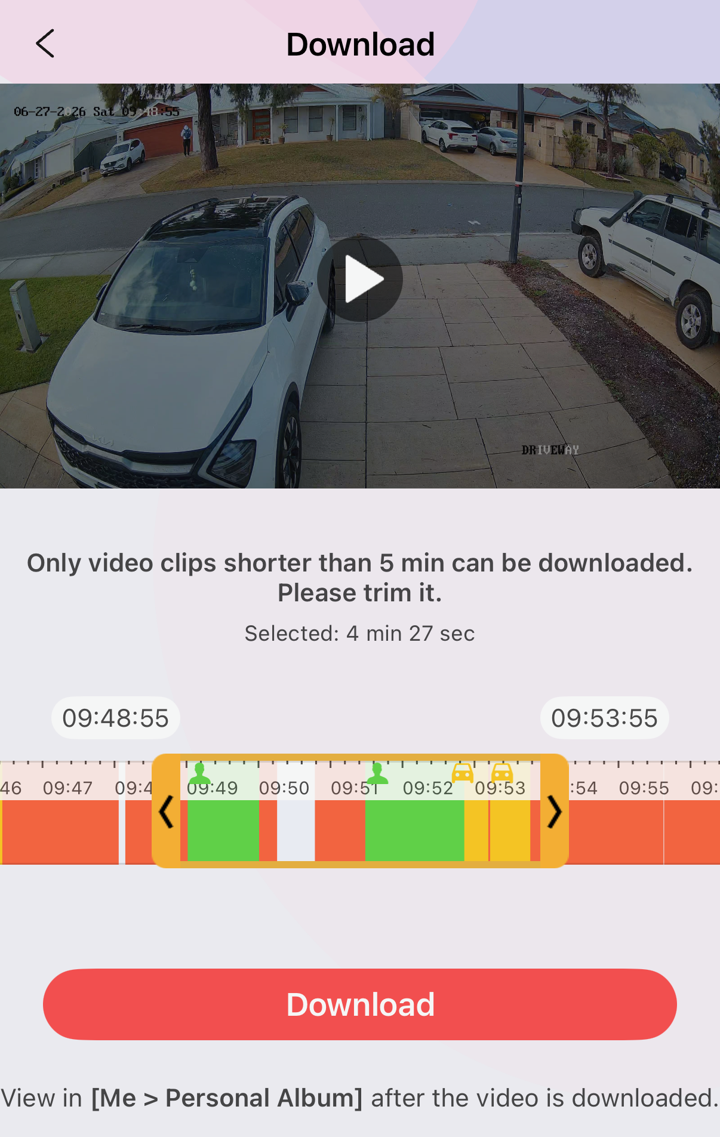
Tap the Download icon. Drag the two handles on the timeline to pick the section you want — it has to be under 5 minutes. Then tap Download.
- 2
Let it save
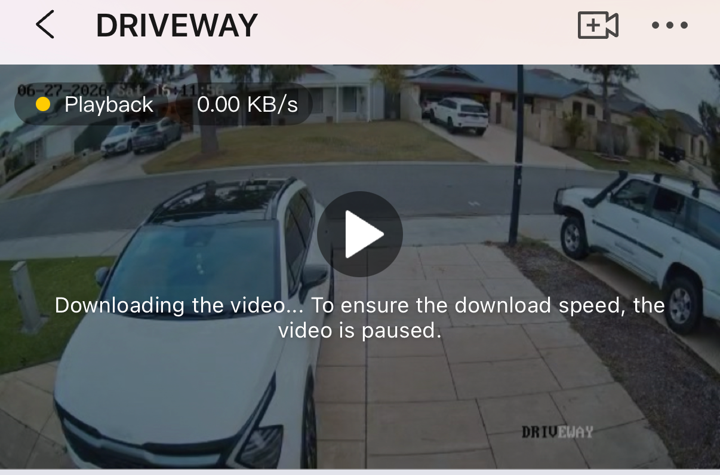
The video pauses while it downloads — that's normal, it just helps it save faster.
- 3
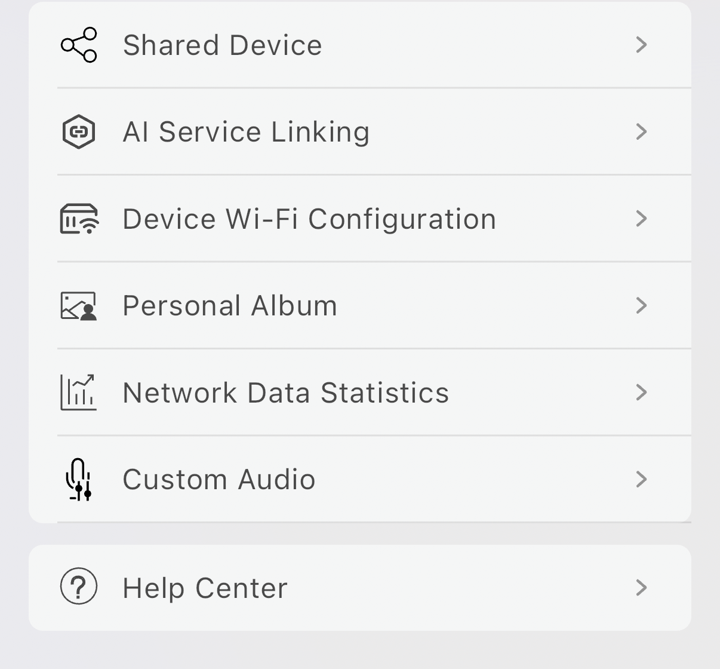
Go to Me → Personal Album
Head back to the home screen first. Then tap Me in the bottom-right corner, and open Personal Album.
- 4
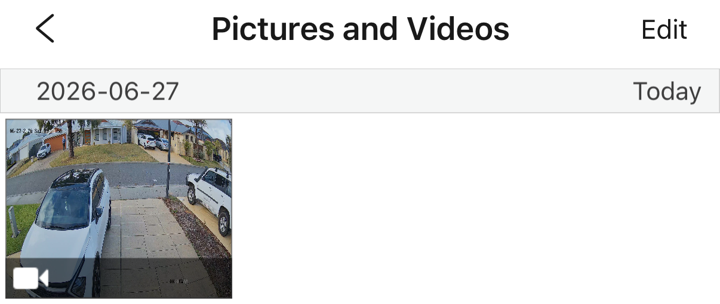
Open your clip
Your saved clips live here, grouped by date. Tap the one you just downloaded.
- 5
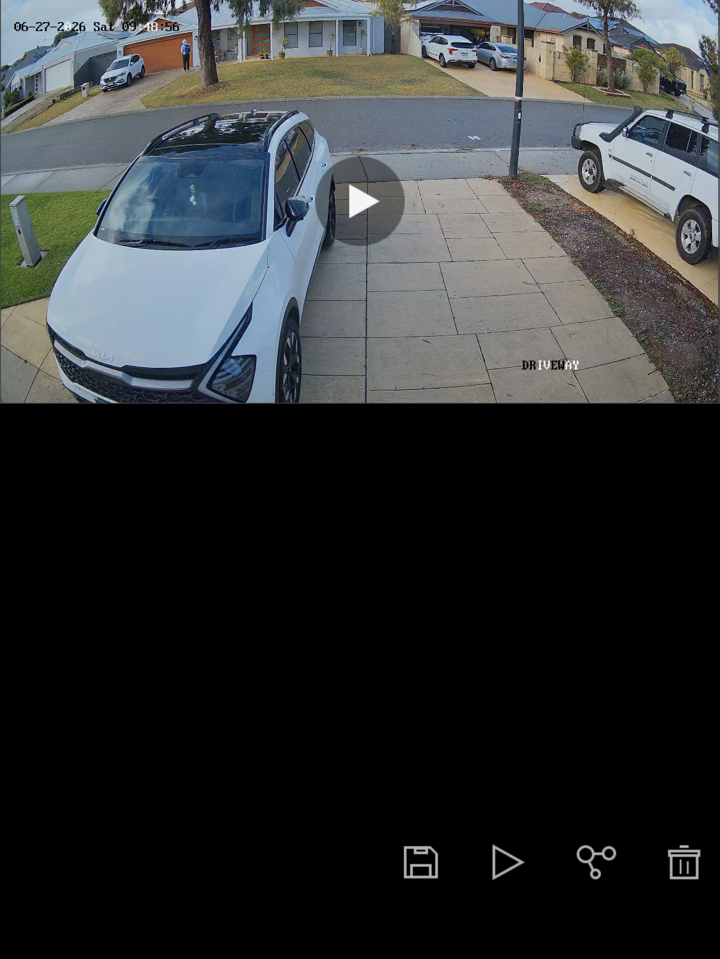
Save, play, share or delete
From here you can save it to your phone's own photos, play it, share it on (to police, family, whoever needs it), or delete it. The buttons sit along the bottom.
That's playback sorted.
Scroll back, read the colours, and save anything worth keeping before it ages out of the recordings. If you ever need a hand pulling footage for an incident, give us a call.
Need a hand finding footage?
Give us a call or send an email and we'll talk you through it.